
Traditional methods, while familiar, often lead to time-consuming processes, errors, and delayed payments. In contrast, automated systems offer precision, speed, and scalability.
Consider this: How much time does your finance team spend on monthly invoice generation? What would impact your business if you could redirect those hours toward strategic financial planning or customer relationship management?
This comprehensive guide discusses how to create multiple invoices from Excel spreadsheets, JSON, and XML files, offering you a roadmap to streamline your billing workflows and enhance your financial operations.
Before diving into the technicalities of bulk invoice generation, let's discuss the building blocks of a professional invoice. Each element serves a specific purpose, contributing to clear communication and efficient payment processing:-
Now that we've covered the essentials, let's dive into the step-by-step process of setting up an Excel-based system to create multiple invoices.
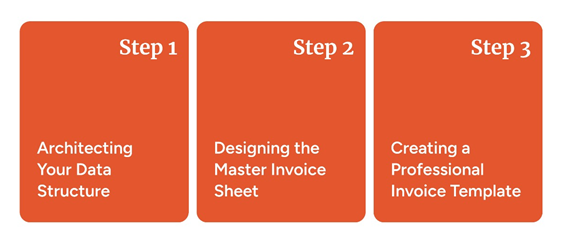
Start by creating three separate sheets in your workbook:
Customer Directory: Store key details like Customer ID, Company Name, Contact Person, Email, Billing Address, and Tax ID.
Product/Service Catalog: List your offerings with Product ID, Description, Unit Price, Tax Rate, and Category.
Master Invoice Log: Use this central sheet to track every transaction by connecting customers to products.
To keep data consistent, apply standard validation rules—such as dropdown lists for selecting products and built-in checks for email formats.
Think of this sheet as your central operational hub. Set up columns for the following fields:
Invoice Metadata: Auto-generated Invoice Number and
Date (
=TODAY()
).
Lookup Identifiers: Dropdown menus for Customer ID and Product ID linked directly to your lookup sheets.
Line Items & Totals: Quantity, Unit Price, Subtotal, Tax Amount, and Total Amount.
Key Formulas:
Unit Price: Pull automatically from your catalog
using
INDEX/MATCH
or
XLOOKUP
.
Subtotal:
Quantity × Unit Price
Tax Amount:
Subtotal × Tax Rate
Total Amount:
Subtotal + Tax Amount
Tip: Add conditional formatting to highlight overdue payments or flag high-value invoices automatically.
Note on Scope: Standard lookup formulas populate transaction details row-by-row, but they cannot generate individual PDF documents on their own. Creating separate invoice files still requires Word Mail Merge, custom VBA macros, or a dedicated document generation workflow.
Set up a clean, printable Invoice Template tab to display finalized documents:
Branding & Layout: Add your company logo, clear section headers for client details, and subtle border lines for readability.
Data Integration: Pull information dynamically from the Master Sheet using lookup formulas.
Formatting: Use a clean 10–12pt font, right-align monetary values, left-align text, and include a clear payment due date along with footer page numbers.
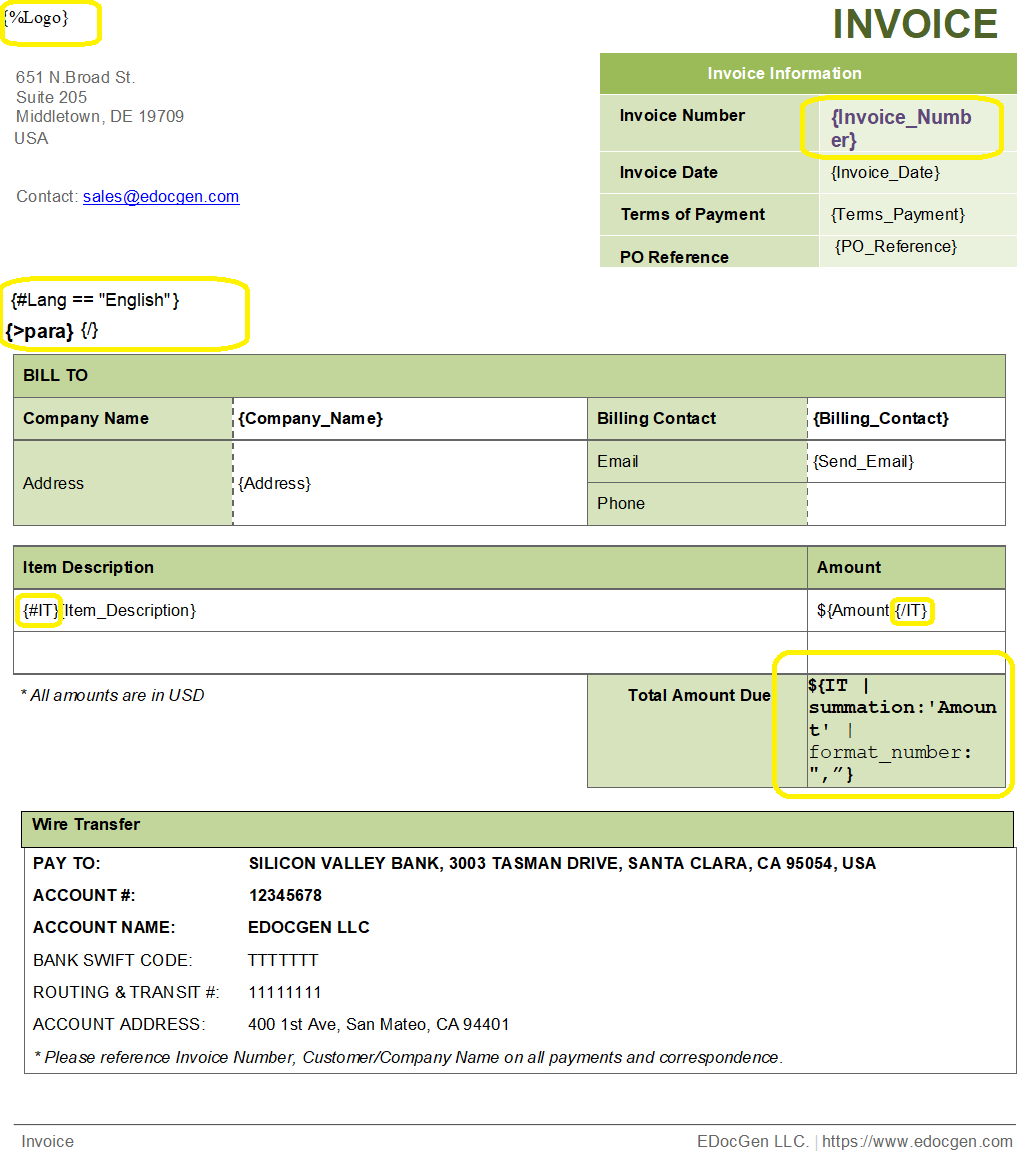
If you already have an established invoice layout in Microsoft Word or Excel, you don't need to rebuild it or write complex spreadsheet formulas.
Instead of setting up lookup functions, simply replace static values with
plain text tags—such as
{Company_Name}
,
{Invoice_Number}
, or
{Due_Date}
.
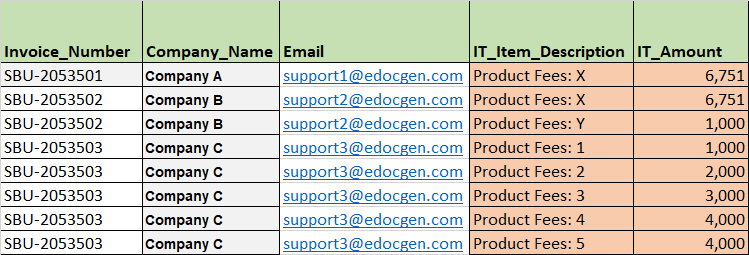
Line-Item Grouping: The system automatically handles multi-item tables. Multiple line-item rows belonging to the same customer are grouped into a single invoice—eliminating the "one invoice per row" limitation without requiring Word Mail Merge or custom macros.
No-Code Tagging: Business users can insert these tags directly inside Word or Excel. They can use either native office editors or EDocGen's template builder office add-in. Your files remain standard, editable documents without needing custom code or developer support.
Below are the sample invoice template and Excel. You can set up conditional logic to handle various invoice scenarios (e.g., different tax rates, and discounts).
While Excel is a versatile tool, JSON (JavaScript Object Notation) and XML (eXtensible Markup Language) offer even more flexibility and integration capabilities for invoice generation, especially when working with web applications or APIs.
JSON's lightweight, easy-to-read format makes it ideal for transferring invoice data between different systems. Here's a basic structure for an invoice in JSON format:
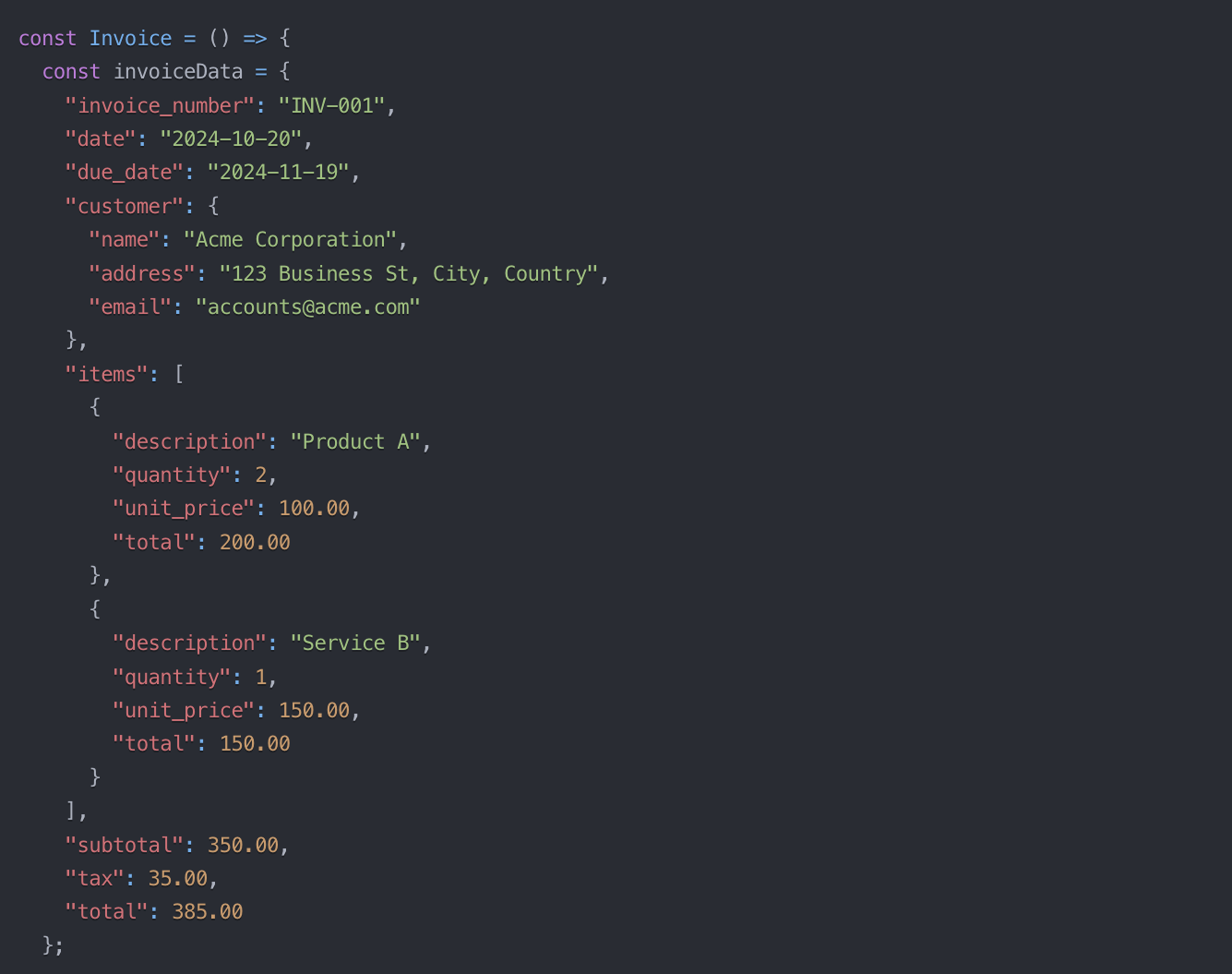
This structure allows for easy parsing and generation of invoice data, making it particularly useful for web-based invoice generation systems or when integrating with modern APIs.
XML provides a more structured approach, which can be beneficial for complex invoicing scenarios or when working with legacy systems. Here's an example of an invoice structure in XML:
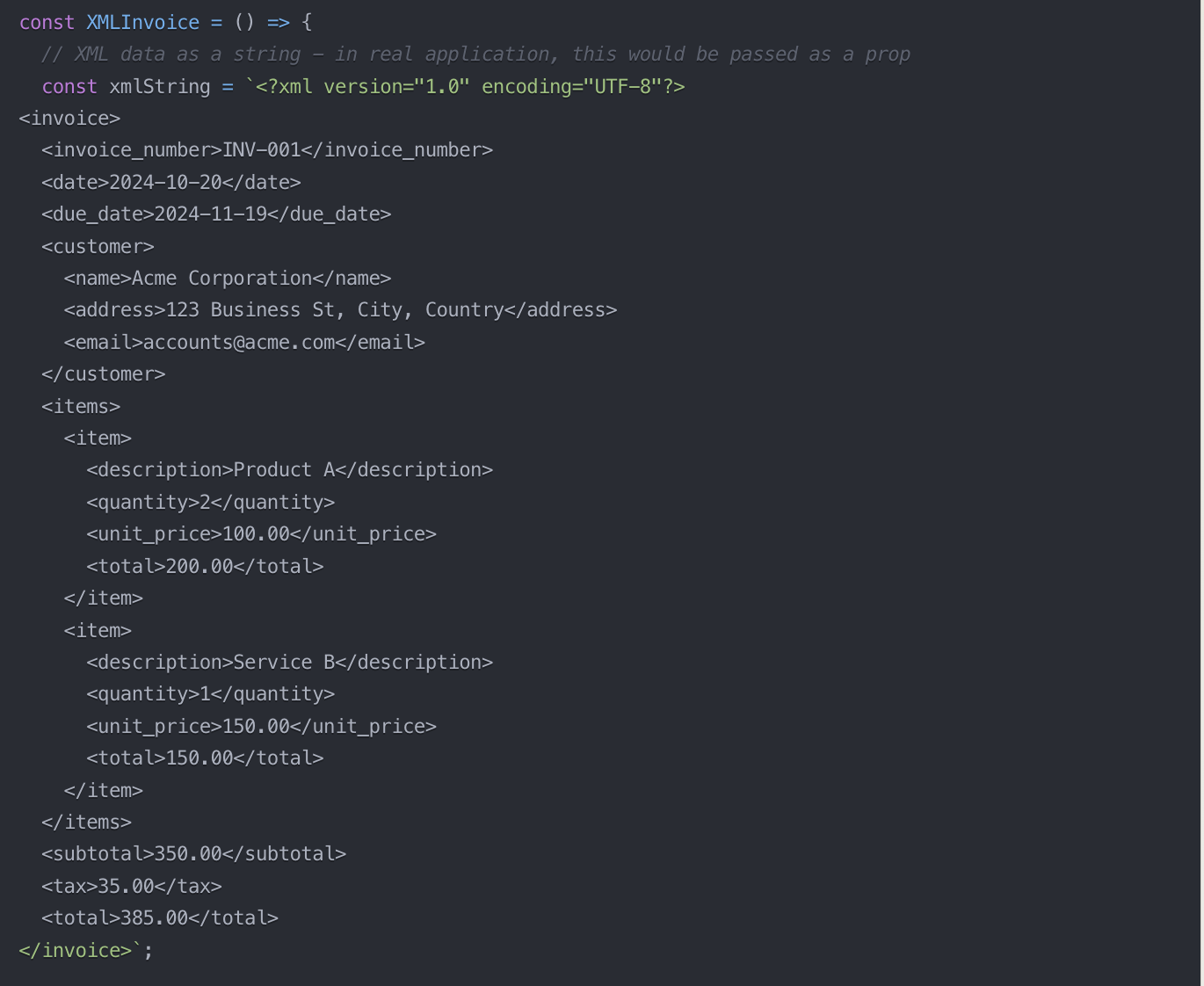
XML's hierarchical structure makes it particularly suitable for representing complex invoice data with multiple levels of nested information.
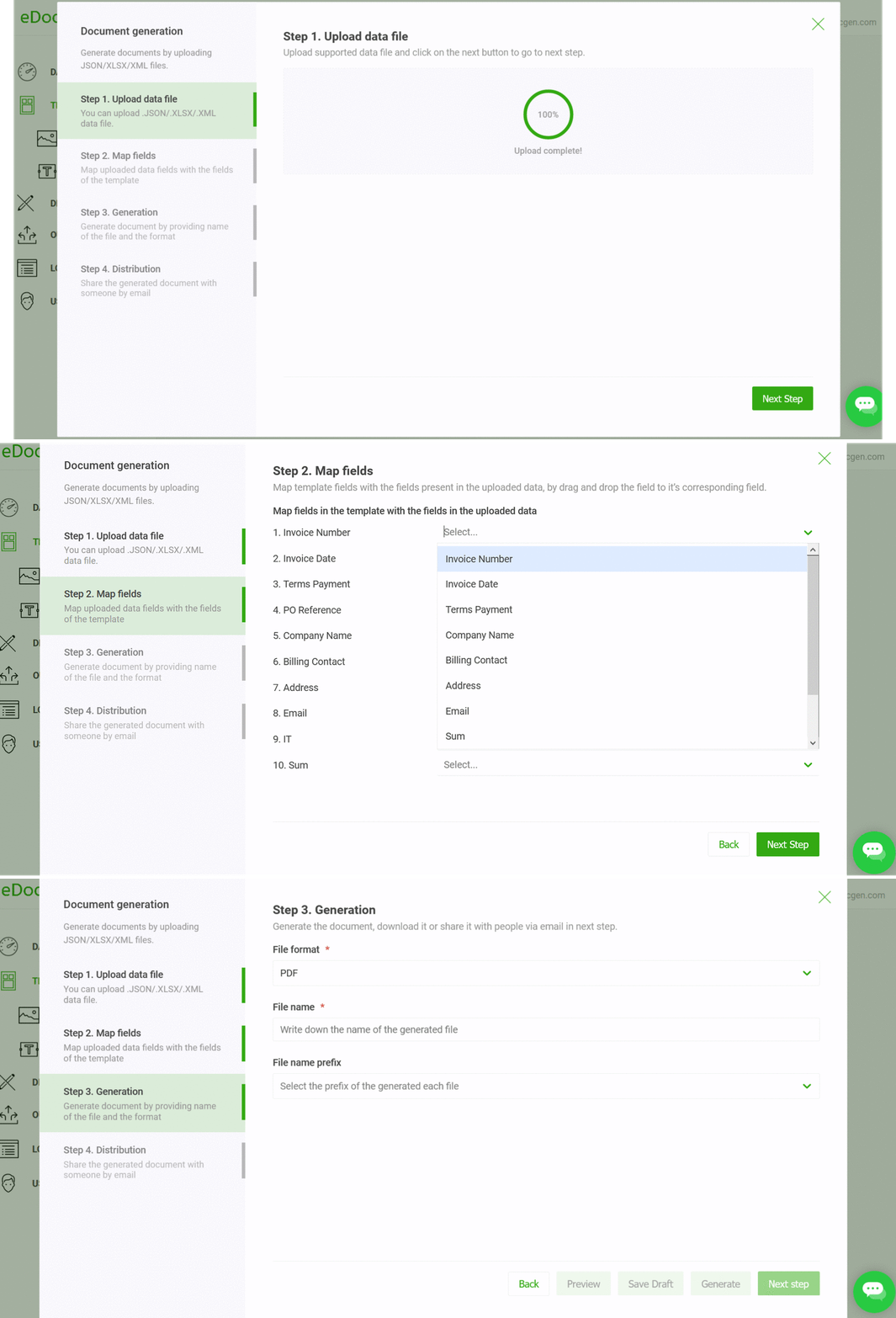
EDocGen provides a comprehensive, user-friendly platform for efficient multiple invoice generation. Follow this step-by-step guide to generate excel/json/xml based invoices:-
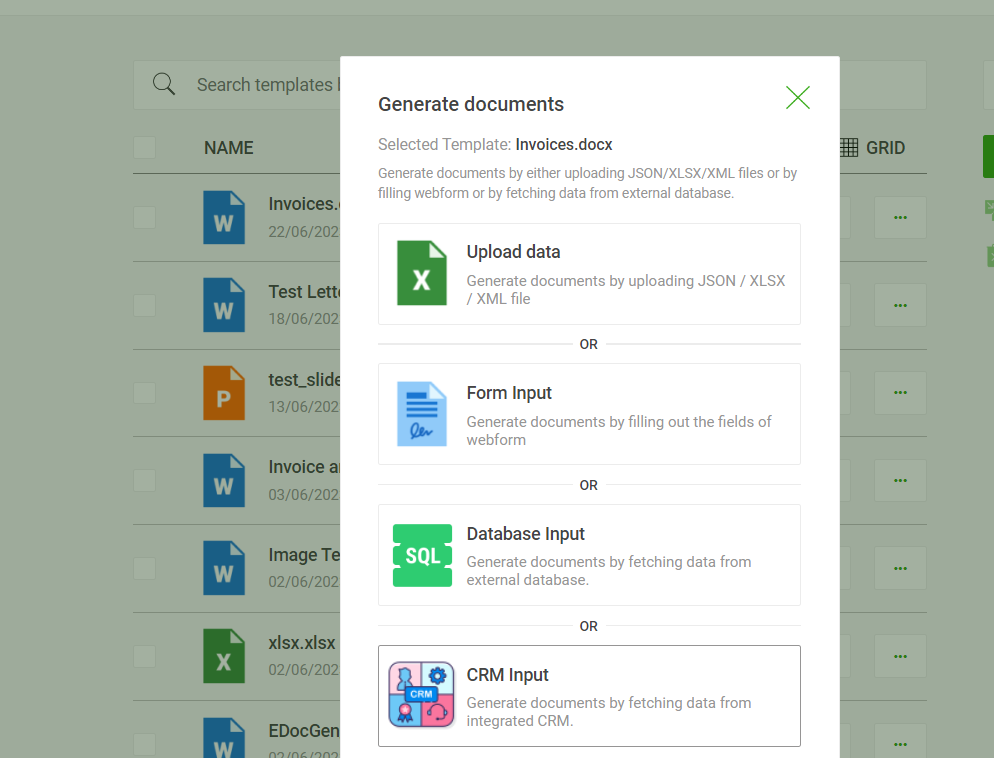
Upload Data: Select "Upload data" option (fist option) to import your Excel, JSON, or XML files into the platform.
Map Data Fields: Use the built-in mapping tool to connect your data fields directly to the corresponding template elements.
Configure Batch Settings: Define your output preferences and set naming conventions or file prefixes for batch generation.
Automate Email Delivery: Distribute generated invoices automatically with personalized email subjects and tailored message bodies.
Schedule Recurring Workflows: Set up automated generation schedules to automatically produce and send recurring invoices.
EDocGen enhances accuracy and compliance by automating invoice generation, significantly reducing human error, and ensuring adherence to tax regulations. The platform improves customer experience by delivering clear, professionally formatted invoices, which can lead to faster payments.
Here are features that drive cost savings and scalability, allowing your business to grow without increasing labor costs or processing time:-
EDocGen seamlessly imports data from various sources, including Excel spreadsheets, JSON files, and XML documents. This versatility eliminates the need for manual data entry and reduces the risk of errors associated with data transfer.
Unlike basic Excel or Word templates, EDocGen offers a sophisticated template design interface. Users can create dynamic, responsive invoice templates that automatically adjust based on the input data, ensuring each invoice looks professional regardless of the content.
EDocGen excels at generating multiple invoices simultaneously. Whether you need to create 10 or 10,000 invoices, the system maintains speed and accuracy, dramatically reducing the time spent on invoice generation.
While Excel offers limited customization, EDocGen provides extensive options for tailoring invoices to specific business needs. From dynamic field calculations to conditional content display, EDocGen ensures that each invoice meets the exact specifications.
EDocGen goes beyond simple PDF generation. Users can export invoices in various formats, including interactive PDFs, editable Word documents, and web-ready HTML, catering to diverse client preferences and business processes.
EDocGen streamlines the entire invoice lifecycle with its integrated email capabilities:
Regardless of the tools you use, adhering to these best practices will enhance your invoice management process:
Develop a consistent approach to invoice creation, from numbering conventions to payment terms. This standardization improves efficiency and reduces confusion.
Ensure your customer information, product catalogs, and pricing data are always up-to-date. This practice prevents errors and maintains the accuracy of your invoices.
Protect sensitive financial data by using encryption, secure access controls, and regular backups. If using cloud-based solutions like EDocGen, enable two-factor authentication for added security.
Include detailed payment information on each invoice, including accepted payment methods and bank details. Clear instructions can accelerate the payment process.
Use your invoicing system to send automatic reminders for upcoming and overdue payments. This proactive approach can improve cash flow and reduce late payments. Using EDocGen's intelligent workflow automation, you can send automated payment reminders for invoices and receipts.
Periodically assess your invoicing process for potential improvements. Solicit feedback from your team and customers to identify areas for enhancement.
The ability to efficiently generate multiple invoices from various data sources is no longer a luxury-it's necessary for businesses aiming to stay competitive. While Excel, JSON, and XML offer valuable tools for this process, advanced solutions like EDocGen provide a more comprehensive, scalable approach to invoice automation.
As you consider the next steps for your organization's invoicing processes, ask yourself: How can modernizing our approach to invoice generation contribute to our overall business objectives? The answer may well lie in the powerful capabilities of automated, data-driven systems like EDocGen.
Talk to us today, and take the first step towards mastering multi-invoice generation.
Automated invoice generation can significantly reduce the time spent on billing processes. While the exact time savings can vary depending on the complexity and volume of invoices, many businesses report reducing their invoicing time by 70-90% when switching from manual to automated systems. This efficiency gain allows finance teams to focus on more strategic tasks, improving overall productivity.
Yes, EDocGen is designed to manage complex pricing structures and custom discounts. The system allows you to set up dynamic pricing rules, tiered discounts, and even customer-specific pricing. You can configure conditional logic within your templates to automatically apply the correct prices and discounts based on various factors such as order volume, customer type, or seasonal promotions.
EDocGen maintains data accuracy through several mechanisms:
Additionally, EDocGen provides preview features that allow you to review invoices before final generation, adding an extra layer of quality assurance.
Absolutely. EDocGen offers extensive customization options for invoice templates. You can create multiple templates for different clients, departments, or types of transactions. These templates can vary in layout, branding, language, and content. The system allows you to set rules for automatically selecting the appropriate template based on criteria such as client ID, transaction type, or department code.
EDocGen supports multi-currency invoicing out of the box. You can set up exchange rates within the system or integrate with real-time currency exchange APIs. The platform allows you to generate invoices in the customer's preferred currency while maintaining your base currency for accounting purposes. It also handles currency conversion calculations automatically, ensuring accuracy in multi-currency transactions.
Yes, EDocGen is designed with integration in mind. It offers APIs and pre-built connectors for many popular accounting and ERP systems. This allows for seamless data flow between EDocGen and your existing financial software, ensuring consistency across your business systems. If you're using a less common or custom system, EDocGen's team can work with you to develop a tailored integration solution.