
The EDocGen Salesforce Managed Package simplifies document automation by eliminating custom multipart HTTP requests, polling mechanisms, and complex OAuth authentication flows[cite: 4].
Key Architecture Features:
PDF, DOCX, and PPTX documents from unified templates[cite: 4].ContentVersion / Files and attached directly to target record IDs[cite: 4].edocgen) into your Sandbox or Production org[cite: 4].
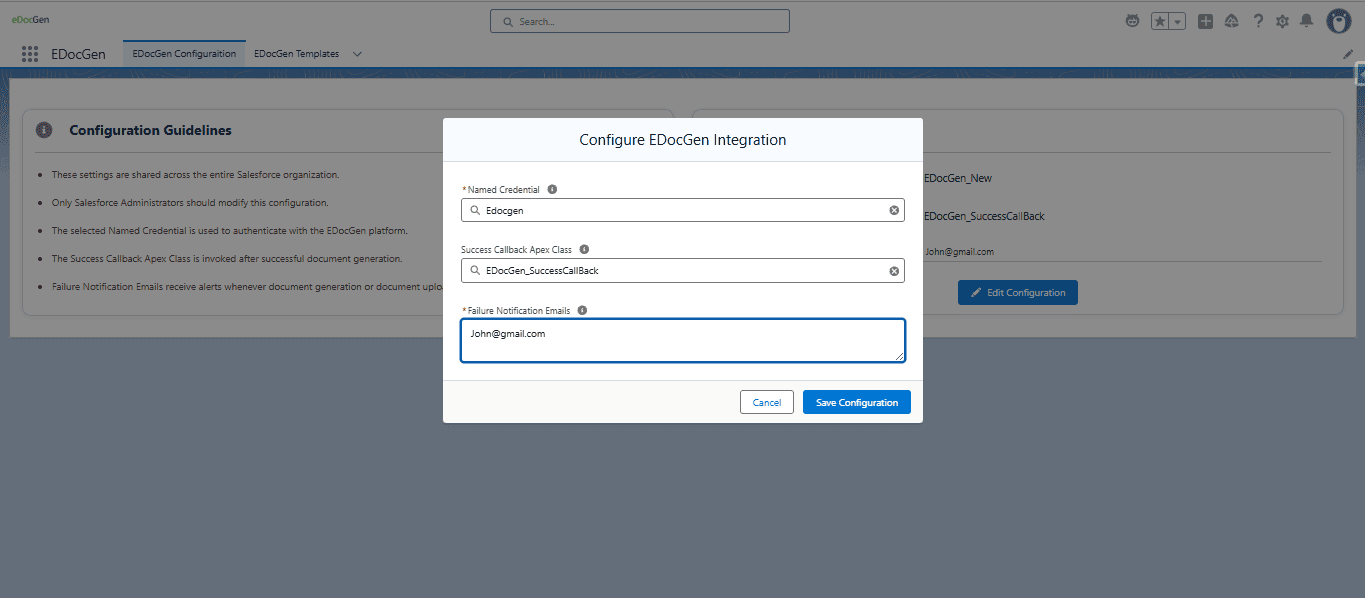
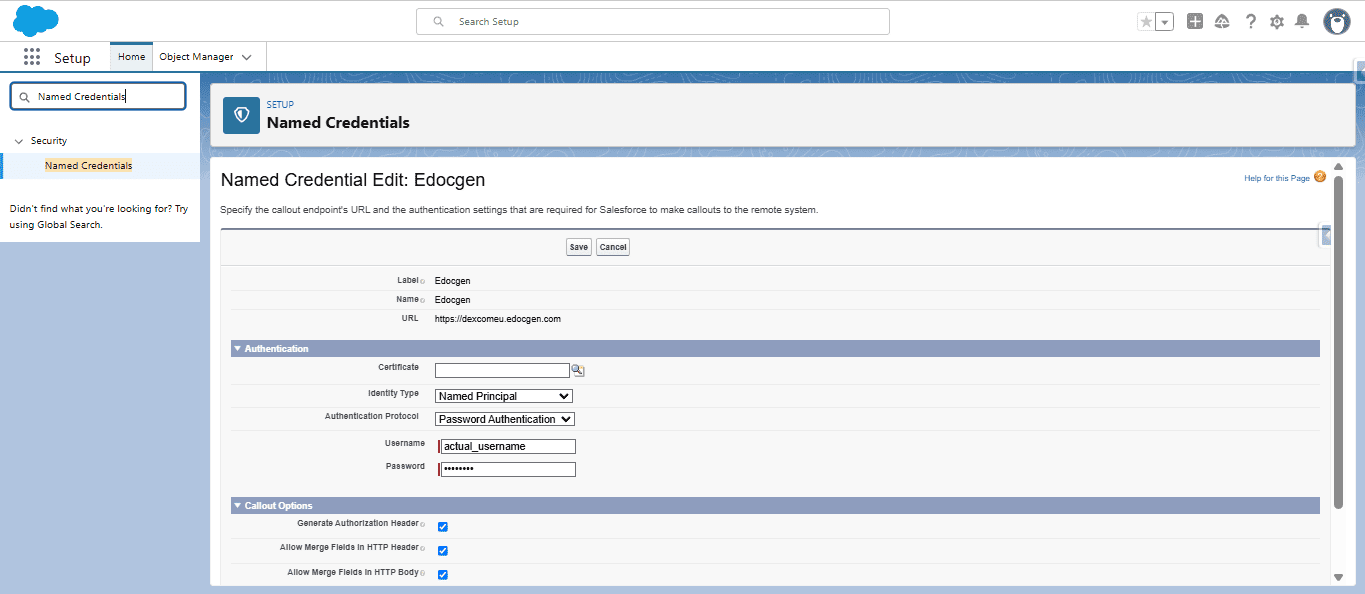
EDocGen supports single-record generation actions, list view bulk processing, and Apex-driven automation[cite: 4].
Bind the edocgen:Templates Lightning Component to a custom Action button on any standard or custom object page layout[cite: 4].
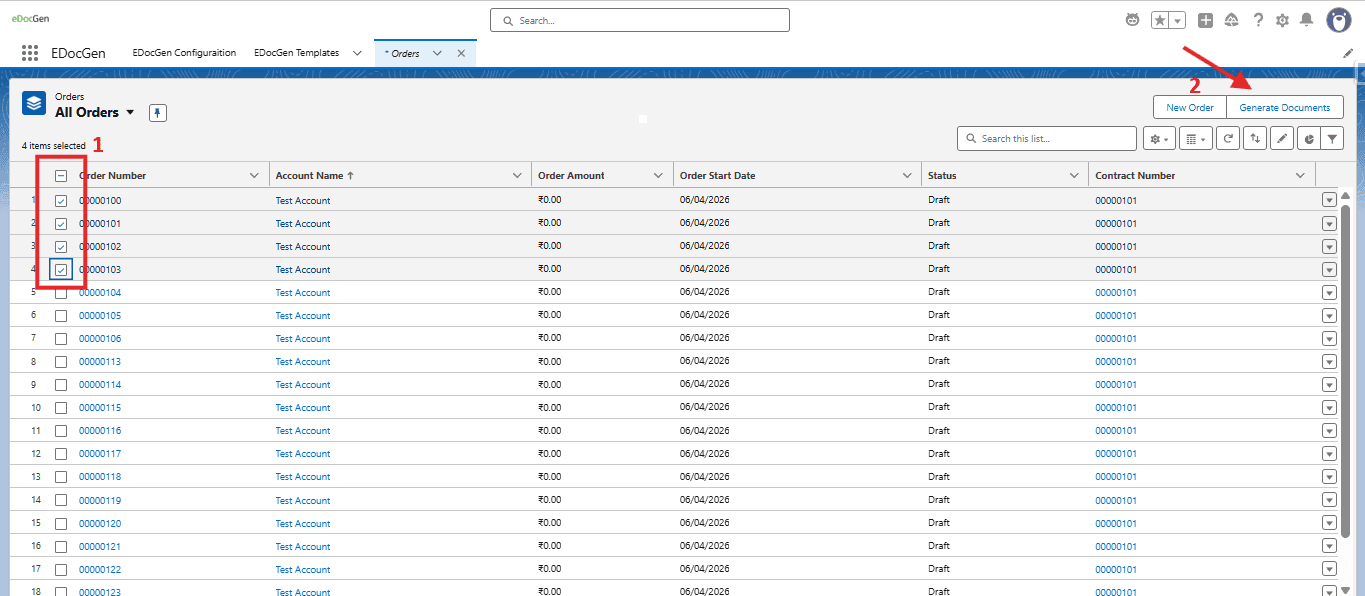
Add a standard List Button targeting the packaged Flow URL /flow/edocgen/EDocGen to process multiple selected records[cite: 4, 5].
Trigger background generation logic via Apex code, Scheduled Jobs, or Salesforce Invocable Actions[cite: 4].
To add a document generation button to a record page (e.g., Order or Opportunity):
edocgen:Templates, and assign a label like Generate Document[cite: 5].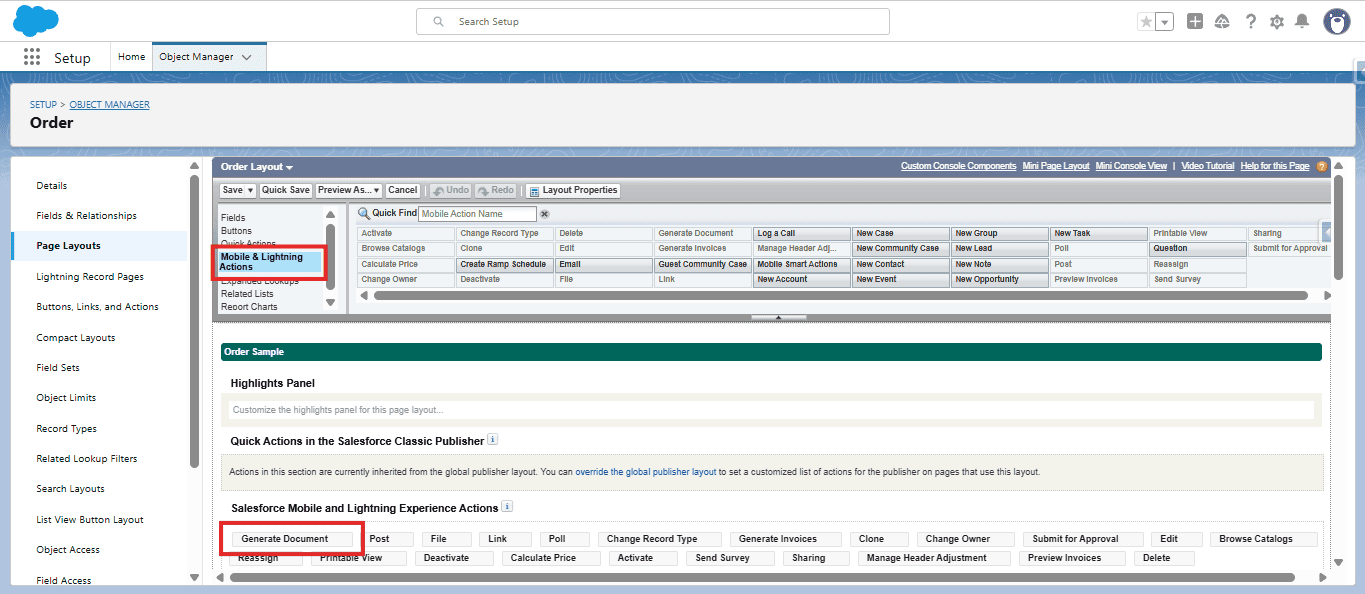
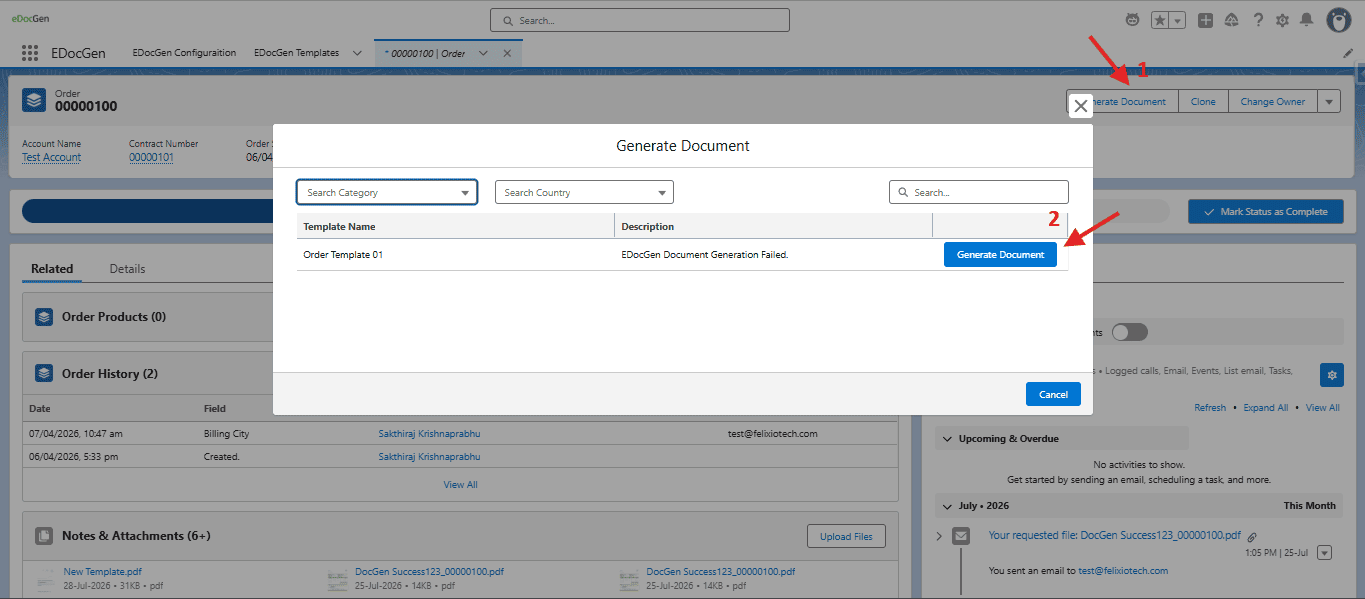
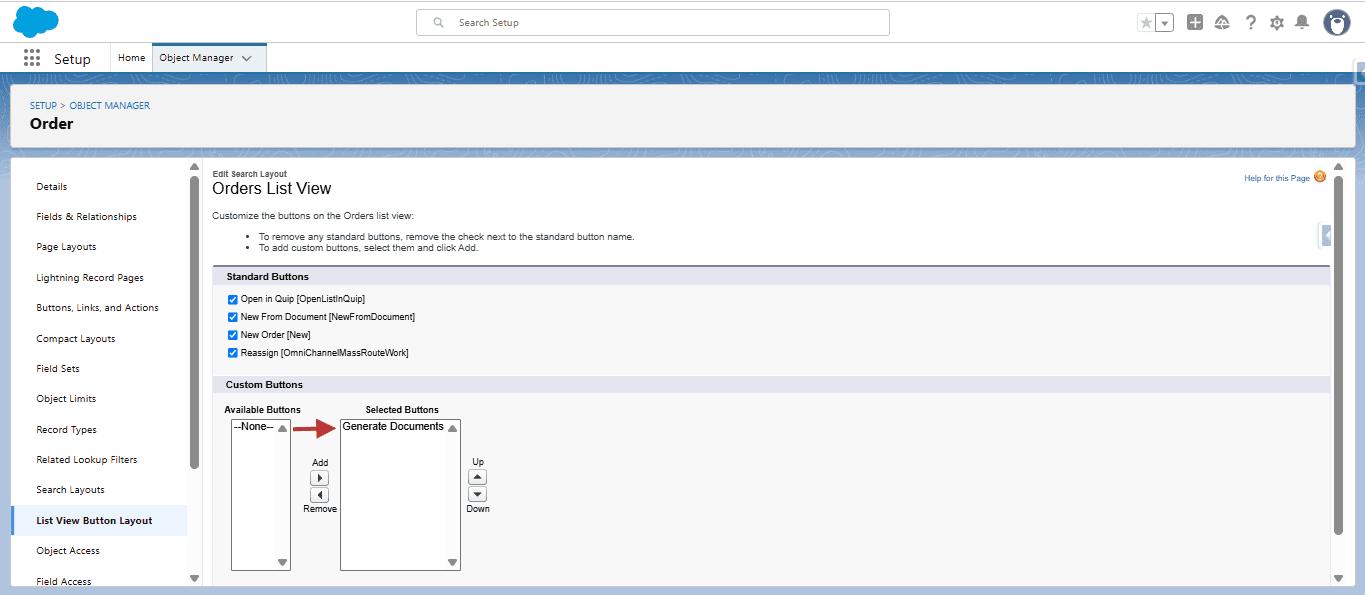
To enable multi-record generation from list views:
/flow/edocgen/EDocGen[cite: 5].
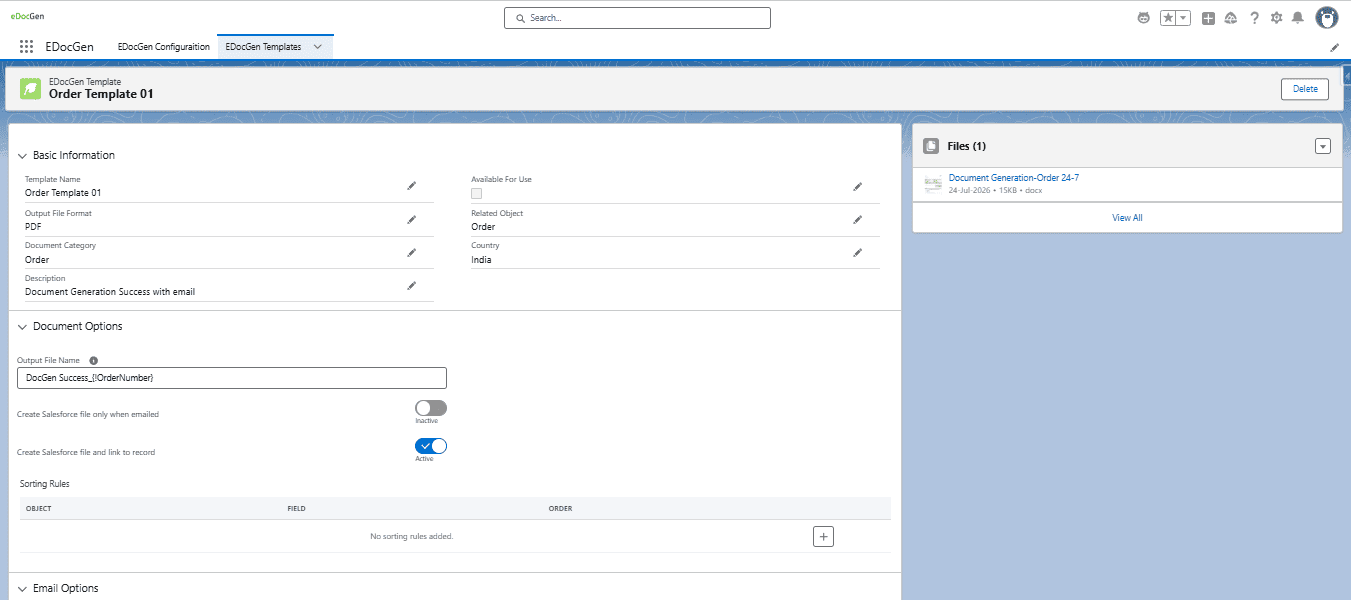
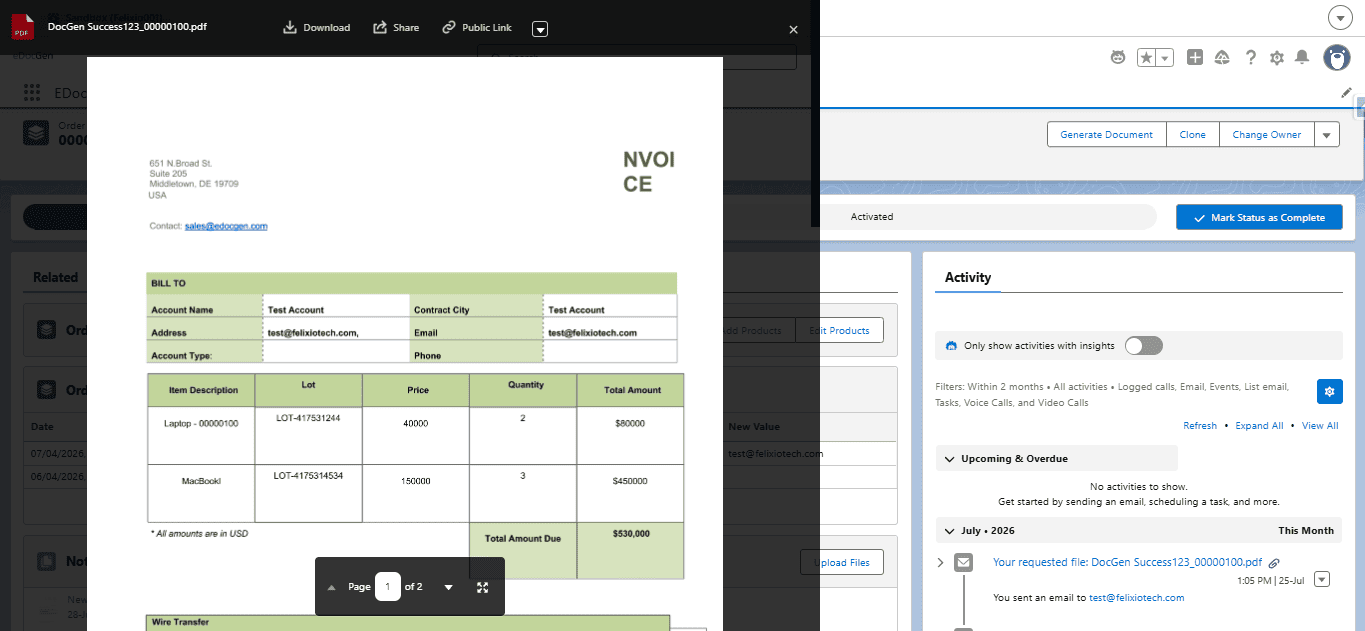
Manage your document templates and access generated files directly inside Salesforce[cite: 5]:
| Object Domain | Output Documents | Recommended Pattern |
|---|---|---|
Opportunity / Quote |
Proposals, Master Service Agreements | Single Record Action (Lightning Component)[cite: 4] |
Order / Account |
Invoices, Statements, Account Summaries | Apex Trigger or Scheduled Batch Job[cite: 4] |
Contact / Case |
Batch Letters, Work Order Summaries | List View Bulk Action Flow[cite: 4] |
Execute document generation programmatically from Apex using the global entry point method[cite: 4]:
edocgen.EdocGenDocumentGeneration.generateDocuments(wrapper)[cite: 4]
// Initialize wrapper with target Template ID and Record IDs
List<Id> recordIds = new List<Id>{ '001XXXXXXXXXXXX', '001YYYYYYYYYYYY' };
Id templateId = 'a0BXXXXXXXXXXXX'; // edocgen__EDocGen_Templates__c ID

edocgen.EdocGenDocumentGeneration.DocumentGenerationWrapper wrapper =
    new edocgen.EdocGenDocumentGeneration.DocumentGenerationWrapper(
        templateId,            // EDocGen Template ID or Name String
        recordIds,             // Single or multiple Record IDs
        null,                  // Org-Wide Email Address ID (Optional)
        'BillingAddress',      // To Address field API path (Optional)
        'Contact.Email',       // CC field API path (Optional)
        null                   // BCC field API path (Optional)
    );

// Trigger generation asynchronously
edocgen.EdocGenDocumentGeneration.generateDocuments(wrapper);
For extensive signature options and parameter details, reference the full Apex Quickstart Guide[cite: 4].
Templates are configured using familiar Office tags (e.g., {Account_Name}, {Total_Amount}) and synced to Salesforce via the EDocGen Templates (edocgen__EDocGen_Templates__c) object[cite: 4, 5].
To handle post-generation workflows (such as updating record status fields), implement the edocgen.ConnectorToOrg.ConnectorInterface[cite: 4]:
global class EDocGen_SuccessCallBack implements edocgen.ConnectorToOrg.ConnectorInterface {
    global void handleDocumentGenerateSuccess(Map<String, String> generateSuccessMap) {
        // Retrieve JSON mapping: RecordId -> ContentVersionId
        String recordToContentMapJson = generateSuccessMap.get('recordIdWithContentVersionIdMap');

        // Execute post-generation business logic
        System.debug('Generation output details: ' + generateSuccessMap);
    }
}Configure comma-separated admin email addresses in the EDocGen Configuration Tab to instantly receive notifications if document rendering or file upload failures occur[cite: 4, 5].