XML to PowerPoint files
Posted by admin
Generate PPTX files automatically using XML data.

Your team probably does not need another static slide deck. More often, they need a PowerPoint form that sales reps can complete without breaking the layout, an onboarding document HR can reuse for every new hire, or a controlled compliance template that captures the same information every time. That is why how to make a fillable form in PowerPoint with EDocGen is such a useful question.
PowerPoint can be made to look fillable in a few different ways. You can add Developer controls, or export slides to PDF and add fields there. The problem is that these options often create extra work, more file versions, and more maintenance over time.
If you need a repeatable business workflow, EDocGen is the stronger option. It lets you use a PPTX template to create fillable forms, apply business rules, and generate finished documents at scale. It also helps multiple teams work from the same template, which improves template governance across the organization.
In this guide, you will learn how to make a fillable form in PowerPoint with EDocGen, why manual alternatives often fall short, and how to build a workflow your team can actually maintain.
PowerPoint is built for presentations first. It is not designed to be a form platform.
That matters because most manual methods solve only part of the problem:
In other words, these approaches can help collect information, but they do not create a governed document workflow.
If your goal is a scalable process instead of a one-off workaround, that is where PowerPoint automation becomes more relevant than manual form design.
EDocGen is designed for teams that need more than blank fields on a slide. It helps you turn a native PowerPoint template into a controlled fillable form and document generation workflow.
With EDocGen, you can:
That is the difference between making PowerPoint look interactive and making it part of a repeatable business system.
Teams in sales, HR, onboarding, and compliance often need that level of control. Instead of asking users to manually edit decks, they can give them a guided input experience backed by rules and template governance.
Here is the practical workflow.
Because EDocGen works with native PowerPoint templates , business users can maintain the visual design without learning a separate design tool. They can also start with an existing template. If you want to see how template-driven fillable workflows work in a closely related format, see create fillable forms in Word .
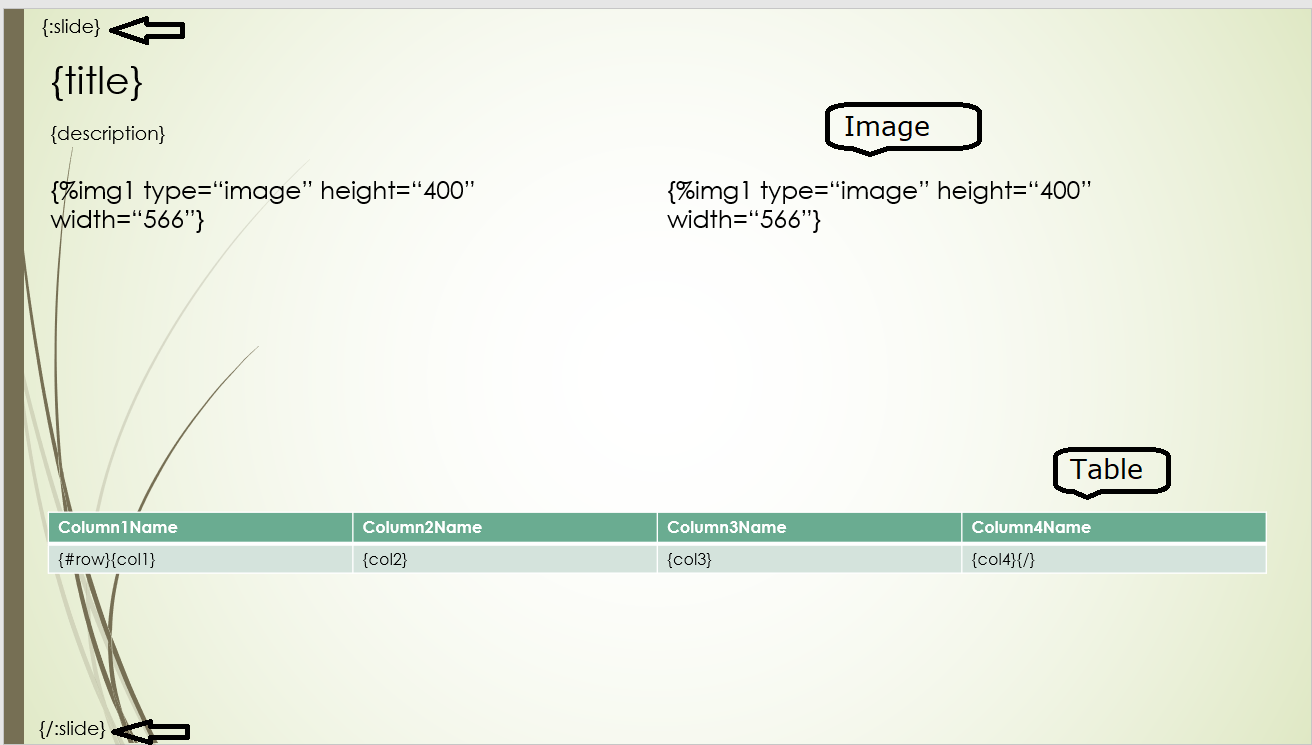
Once the PowerPoint layout is ready, define the fields that users or connected systems will fill.
Depending on the workflow, these can include:
This is where EDocGen moves beyond manual PowerPoint editing. Instead of relying only on visual placeholders, you are creating a structured input model tied directly to the document template.
Add rules and logic
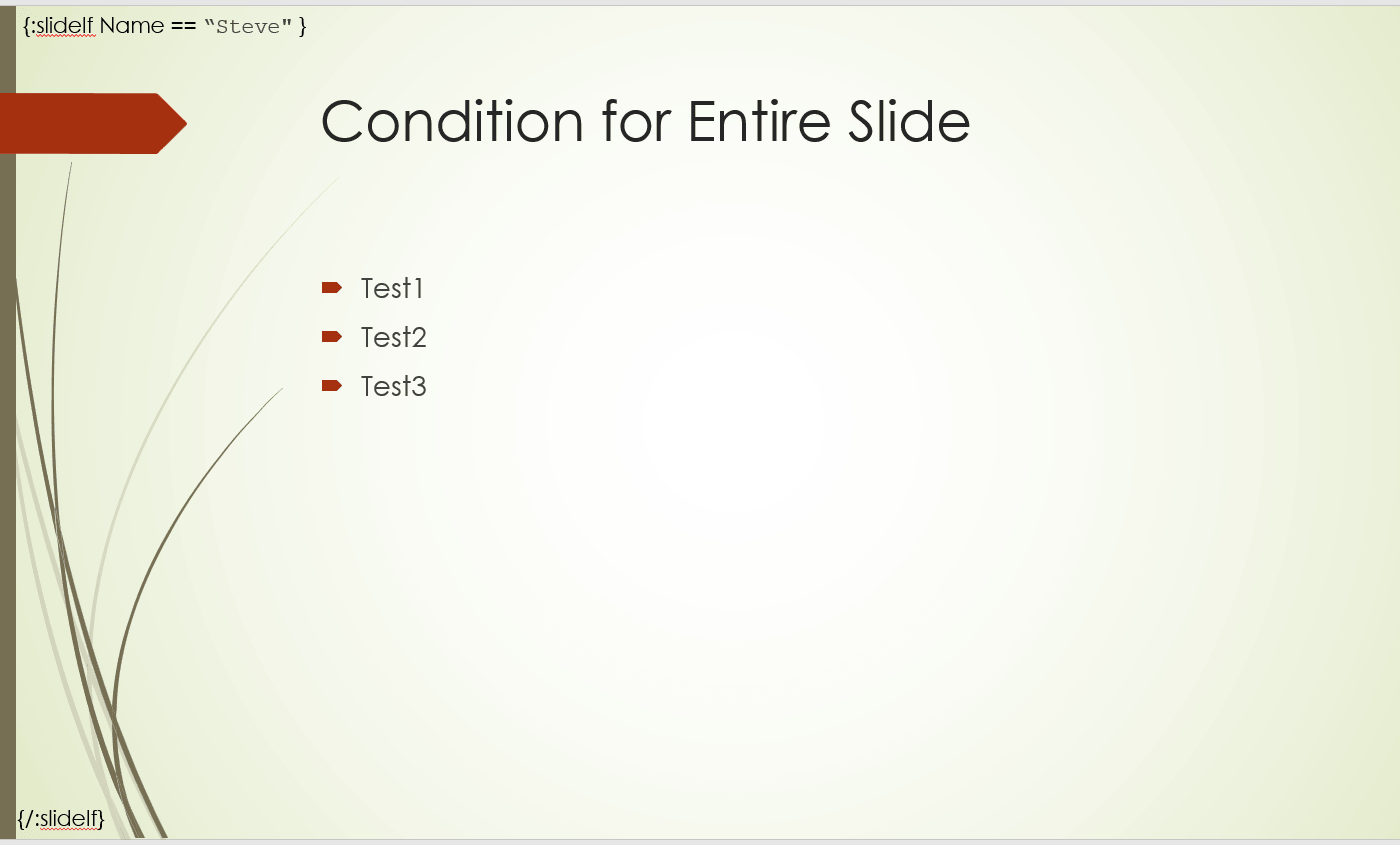
Most real business forms need more than open text areas. They need rules.
With EDocGen, you can configure:
This gives teams more control and reduces the risk of incomplete or inconsistent documents.
If your organization already relies on connected systems, Microsoft integration patterns can also help determine how data should flow into the template.
Once the template is configured, the system automatically generates a form from it. Users can complete that form to create filled-in PowerPoint documents, which is especially useful for teams that need a repeatable internal process.
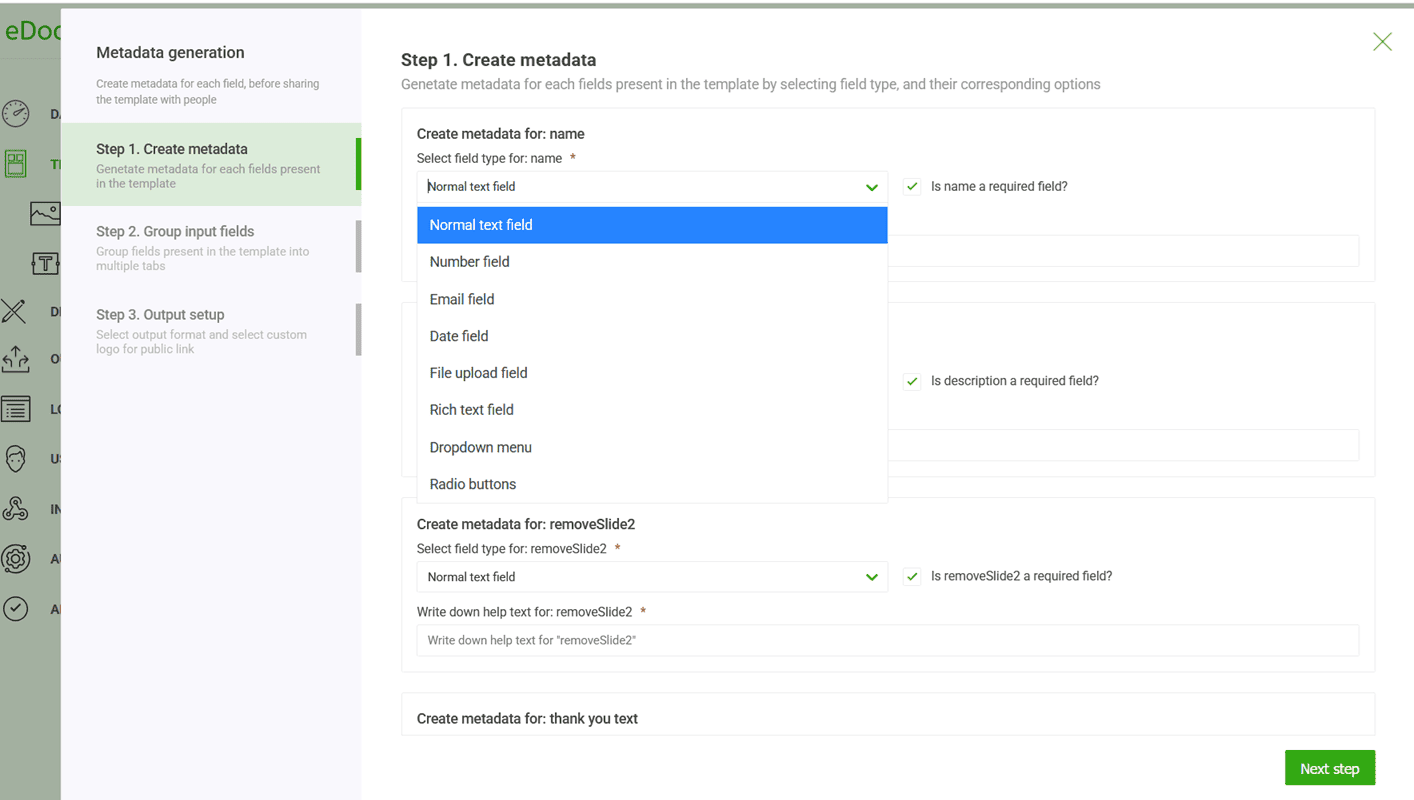
In some cases, you may want to share the form with external users such as field sales reps, customers, or vendors. They should be able to complete the form without logging into the system, and EDocGen supports that as well.
You can create metadata for each field, define field labels, and publish the form online. That form can then be made publicly accessible.
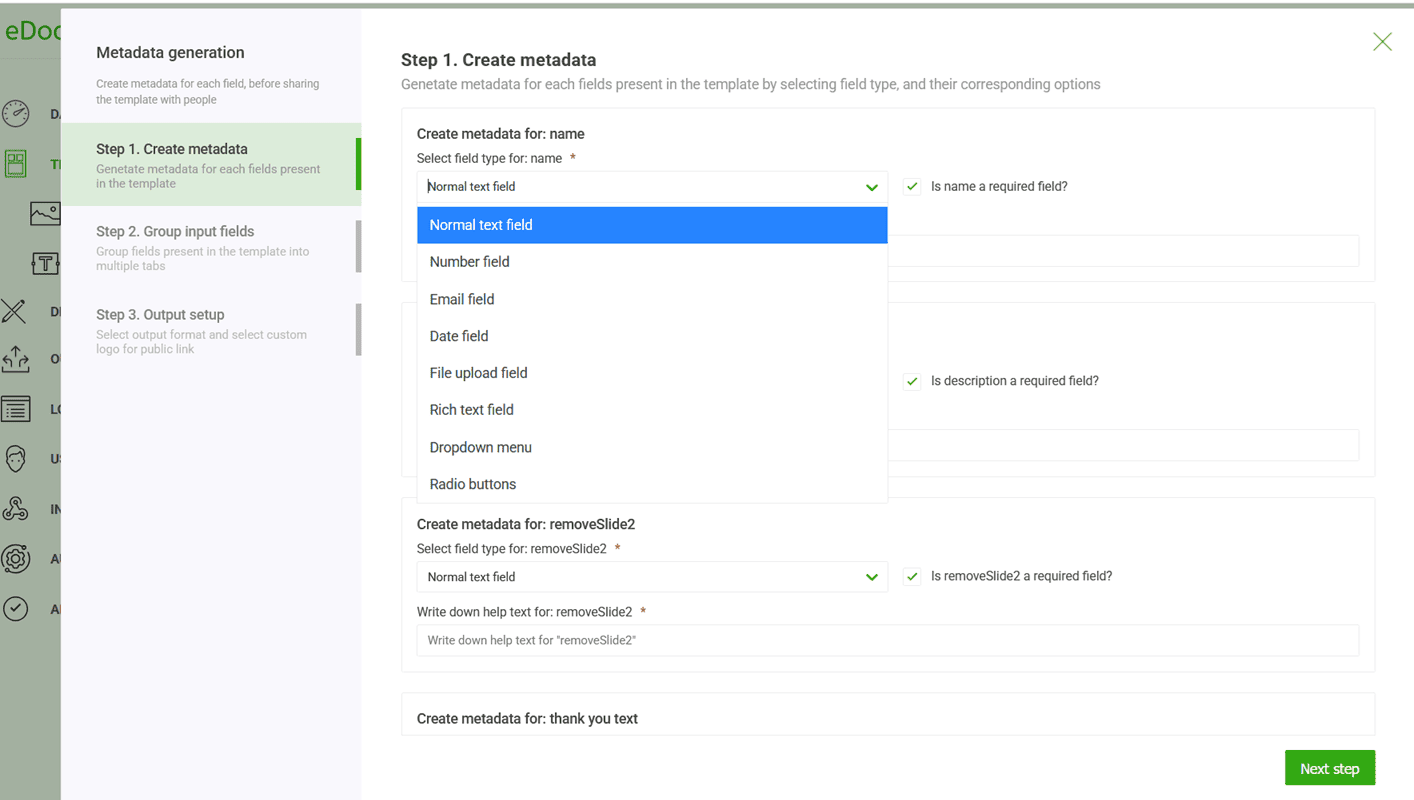
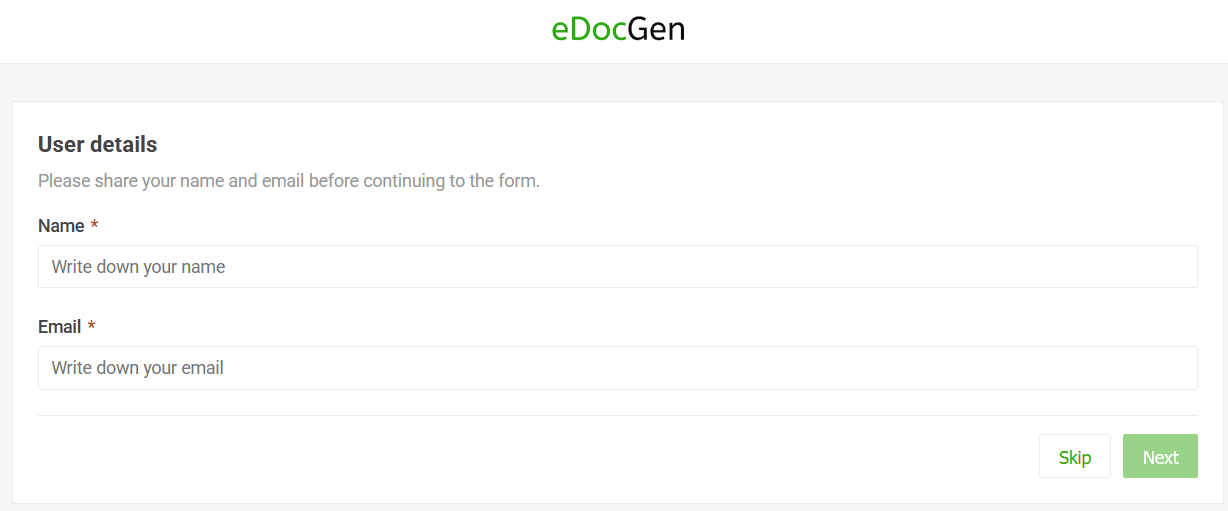
The system also provides an option to collect the name and email of the person completing the form, so they can receive the finished PowerPoint once it is generated.
This means users do not need to rebuild the same form every time. The template can be reused across many requests while keeping the output consistent.
That repeatability is what makes document automation different from ordinary slide editing.
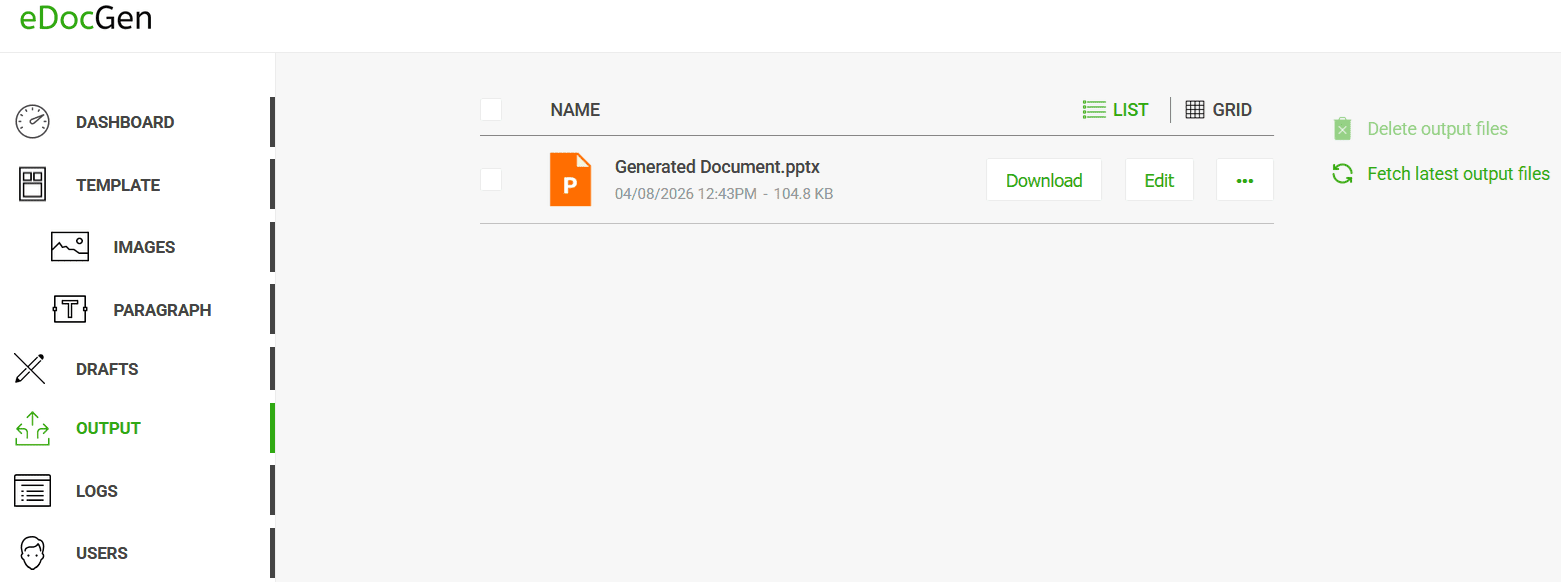
Once the form is completed and submitted, the system generates the finished PowerPoint document. It can send the completed file to the person who filled out the form and also store a copy in the output folder.
Before rollout, test the workflow with real users and real data.
Check:
Then store the approved template centrally so teams do not create duplicate versions.
This is where many manual PowerPoint processes fail. Without a controlled template system, branding drifts, versions multiply, and users start improvising around the process.
If your only goal is to create a simple internal response form, native Microsoft tools may be enough. But that is usually not what business teams need.
Business teams usually need:
That is why EDocGen is the stronger solution.
Instead of building fragile workarounds in PowerPoint, teams can build one governed template and reuse it across workflows. This is especially useful for:
The broader operational benefit also aligns with workflow automation for growth , where repeatability matters more than one-off document creation.
The outcome shared by the customer team is practical. Sales reps can create presentations in flat 60 seconds as opposed to minutes or hours.
Teams usually start looking for fillable PowerPoint workflows when manual methods create friction.
EDocGen helps solve problems such as:
For teams comparing PDF-first processes, some of the same pain points appear in convert PDF to fillable form , especially when maintaining layout and field logic separately becomes a burden.
To get the best results, keep the workflow simple and governed.
If you only need a quick workaround, PowerPoint offers a few ways to imitate fillable behavior. But if you need a reliable workflow that people can reuse, those methods usually create more maintenance than value.
If your goal is to make a fillable form in PowerPoint with reusable templates, structured inputs, and scalable output, EDocGen is the better fit.
It lets your team, work in native PPTX templates , apply document logic, collect consistent data, and generate finished files across formats without rebuilding the process every time.
If you are ready to create a controlled PowerPoint form workflow, EDocGen gives you a practical way to turn PowerPoint templates into governed fillable forms and generated documents at scale.
Posted by admin
Generate PPTX files automatically using XML data.
Posted by admin
Generate PowerPoint files automatically using Excel data.
Posted by admin
Almost all enterprise databases and applications allow you to export data in JSON format.