
Use the EDocGen managed package to generate documents from Apex for a single Salesforce record or many, without writing login, multipart, or download callouts yourself[cite: 8]. The package authenticates via Named Credential and handles generation end to end[cite: 8].
edocgen)[cite: 8].
edocgen__EDocGen_Templates__c) linked to your document template on
app.edocgen.com[cite: 8].
The public entry point is
edocgen.EdocGenDocumentGeneration.generateDocuments[cite: 8].
Pass a DocumentGenerationWrapper with the template, record Ids, and optional email fields[cite: 8].
The same method supports one record or many[cite: 8].
| Parameter | Type | Description |
|---|---|---|
eDocGenTemplateId or template Name |
Id / String | Template record Id, or template Name (resolved by query)[cite: 8]. |
recordIds |
List<Id> |
One Id for single generation, or many for bulk[cite: 8]. |
fromAddressOrgWideAddressId |
Id | Org-Wide Email Address Id for the From address. Pass null to use template defaults[cite: 8]. |
toAddressAPIName |
String | Field API name (or path) used for the To address. Blank uses the template’s To field[cite: 8]. |
ccAddresses / bccAddresses |
String | Optional CC / BCC field API names (or values per your template setup)[cite: 8]. |
generateDocuments creates a Document Generation Request and publishes a platform event[cite: 8].
Generation runs asynchronously[cite: 8]. Use a success callback Apex class if you need to run logic after files are uploaded[cite: 8].
Pass a list with one record Id[cite: 8]. Example using template Id[cite: 8]:
// Namespace: edocgen
Id templateId = 'a0BXXXXXXXXXXXX'; // EDocGen_Templates__c Id
Id recordId = '001XXXXXXXXXXXX';   // e.g. Account or Order Id

edocgen.EdocGenDocumentGeneration.DocumentGenerationWrapper wrapper =
    new edocgen.EdocGenDocumentGeneration.DocumentGenerationWrapper(
        templateId,
        new List<Id>{ recordId },
        null,              // Org-Wide Email Address Id (optional)
        'BillingCity',     // To address field API name (example)
        'Account.Name',    // CC (example)
        'ShippingCity'     // BCC (example)
    );

edocgen.EdocGenDocumentGeneration.generateDocuments(wrapper);
Or resolve the template by Name[cite: 8]:
edocgen.EdocGenDocumentGeneration.DocumentGenerationWrapper wrapper =
    new edocgen.EdocGenDocumentGeneration.DocumentGenerationWrapper(
        'Invoice Template',           // template Name
        new List<Id>{ recordId },
        null,
        'Email',                      // To field API name
        null,
        null
    );

edocgen.EdocGenDocumentGeneration.generateDocuments(wrapper);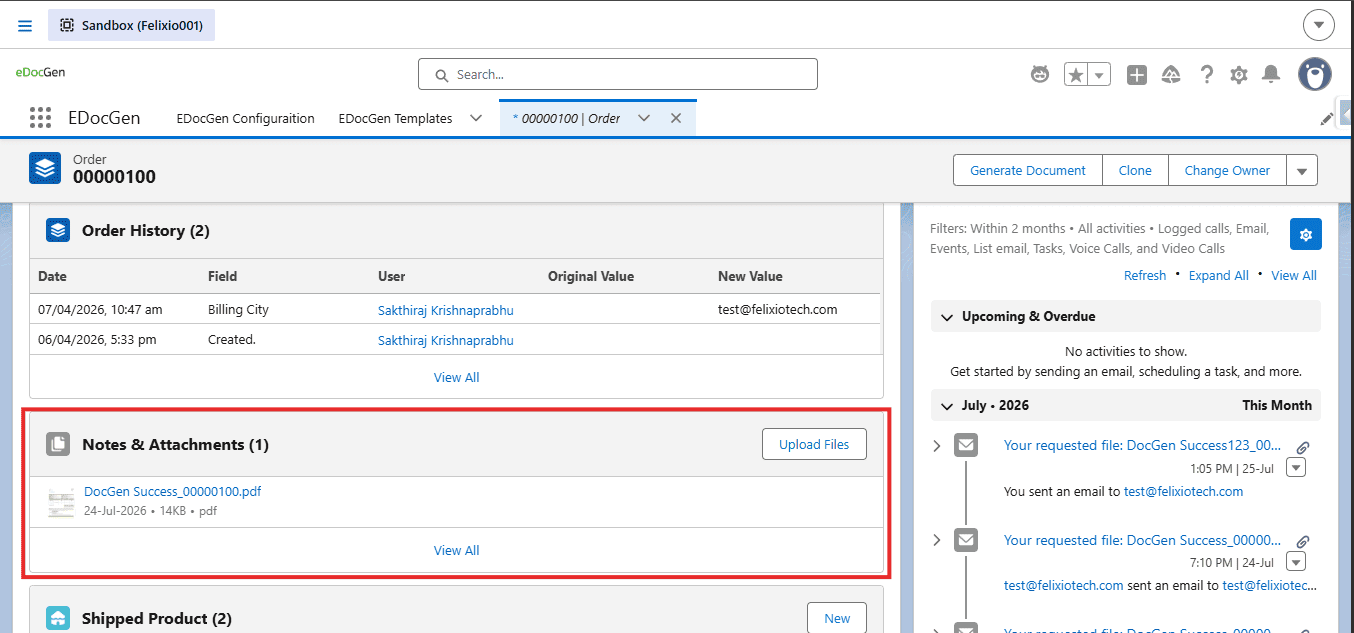
Pass multiple record Ids in the same wrapper[cite: 8]. EDocGen processes each record with the selected template[cite: 8]. This is the Apex equivalent of the list-view Generate Documents button[cite: 8].
List<Id> orderIds = new List<Id>{
    '801XXXXXXXXXXXX',
    '801YYYYYYYYYYYY',
    '801ZZZZZZZZZZZZ'
};

edocgen.EdocGenDocumentGeneration.DocumentGenerationWrapper wrapper =
    new edocgen.EdocGenDocumentGeneration.DocumentGenerationWrapper(
        templateId,
        orderIds,
        null,
        'BillingCity',
        null,
        null
    );

edocgen.EdocGenDocumentGeneration.generateDocuments(wrapper);/flow/edocgen/EDocGen[cite: 8]. See the
Salesforce Document Generation Guide and
Post-Install Guide[cite: 8].
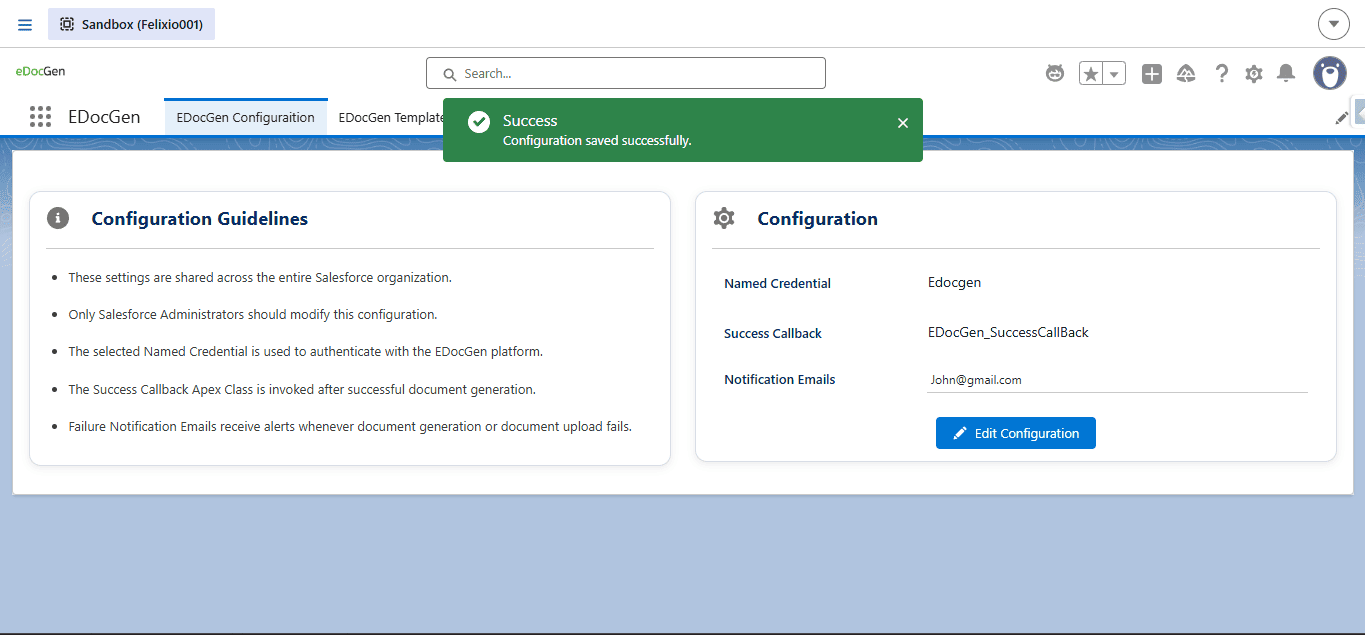
After a document is successfully generated and uploaded, EDocGen can invoke your Apex class[cite: 8]. Configure the class name on the EDocGen Configuration page[cite: 8].
global[cite: 8].edocgen.ConnectorToOrg.ConnectorInterface[cite: 8].global void handleDocumentGenerateSuccess(Map<String, String> generateSuccessMap)[cite: 8].global class EDocGen_SuccessCallBack
implements edocgen.ConnectorToOrg.ConnectorInterface {
global void handleDocumentGenerateSuccess(Map<String, String> generateSuccessMap) {
System.debug('EDocGen success: ' + generateSuccessMap);
// Add custom logic: update records, notify users, start next automation, etc.
}
}generateSuccessMap| Key | Description |
|---|---|
templateId |
Template Id used for generation[cite: 8]. |
objectAPIName |
API name of the Salesforce object (for example, Account)[cite: 8]. |
recordIds |
Comma-separated list of record Ids that succeeded[cite: 8]. |
recordIdWithContentVersionIdMap |
JSON string mapping each Record Id to ContentVersion Id of the generated file[cite: 8]. |
// Example shape of generateSuccessMap values:
// templateId = a0BXXXXXXXXXXXX
// objectAPIName = Account
// recordIds = 001XXXXXXXXXXXX,001YYYYYYYYYYYY
// recordIdWithContentVersionIdMap =
// {"001XXXXXXXXXXXX":"068AAAAAAAAAAAA","001YYYYYYYYYYYY":"068BBBBBBBBBBBB"}On the EDocGen Configuration page, set one or more failure notification emails (comma-separated)[cite: 8]. If generation or upload fails, EDocGen notifies those addresses so admins can investigate[cite: 8].
Example
[email protected],[email protected][cite: 8]