
Help Docs
EDocGen PowerPoint Template Creation
With EDocGen, you can use your existing PowerPoint templates as-is. Only you need to add the placeholders for dynamic fields. It is business-user friendly and doesn't require any programming skills.
 Text
Text
Add {tagName} for the dynamic text field, and it will be filled with data from your data source. Make sure to use the same tag name as your data source field names for easy matching. If you're using JSON, you can use the same tag names as your key names. It's that simple!

Images
To populate images in the template, simply add {%imageTagName} where you want the image to appear. You can use image URLs or IDs of the images uploaded into the system to fill them up. It's a quick and easy way to add visual elements to your template!
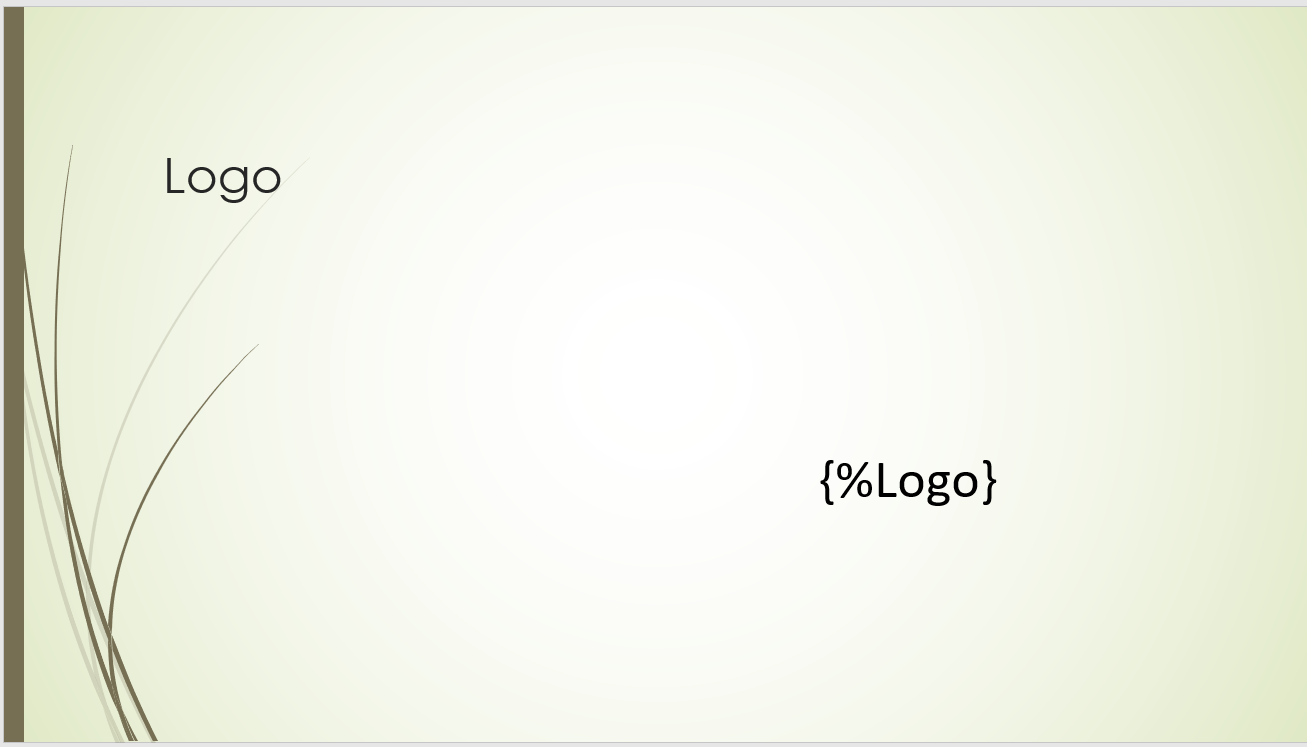
You can also set the dimensions of the image in the tag - {%logo type="image" height="220" width="384"}.
Refer to image help guide for more details.
Conditions
Incorporate the conditions into your template in order to display or conceal data depending on specific conditions.
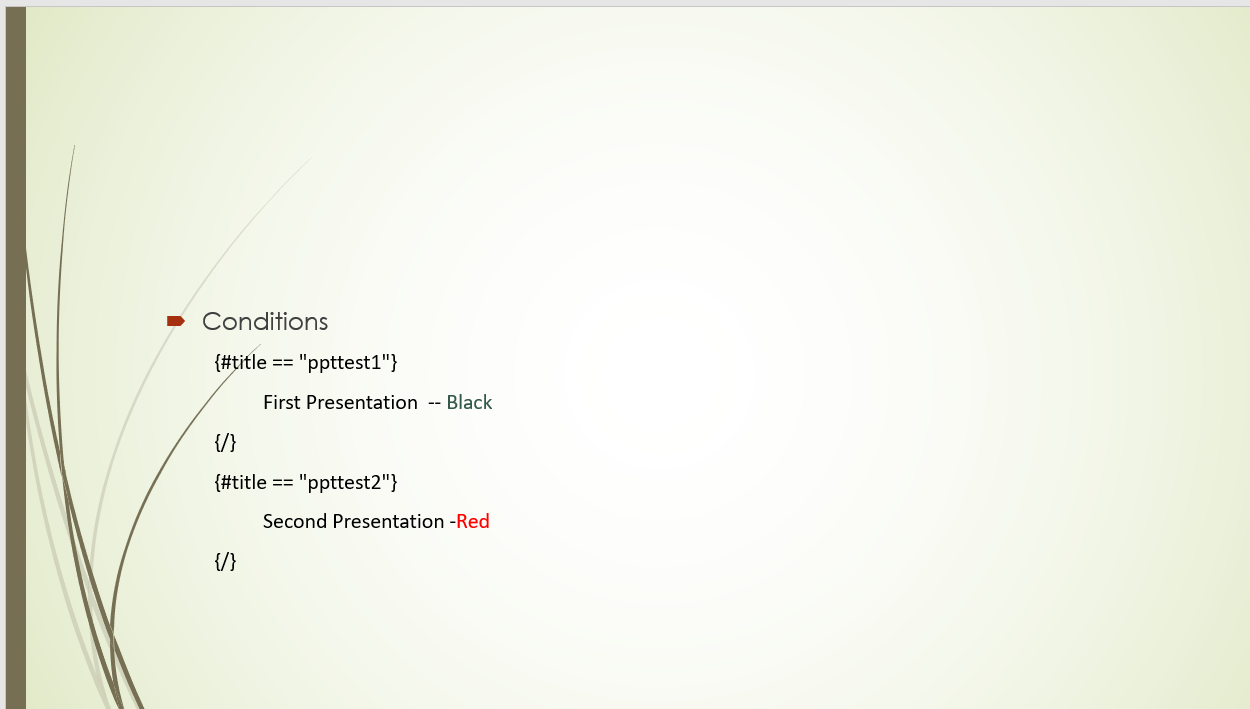
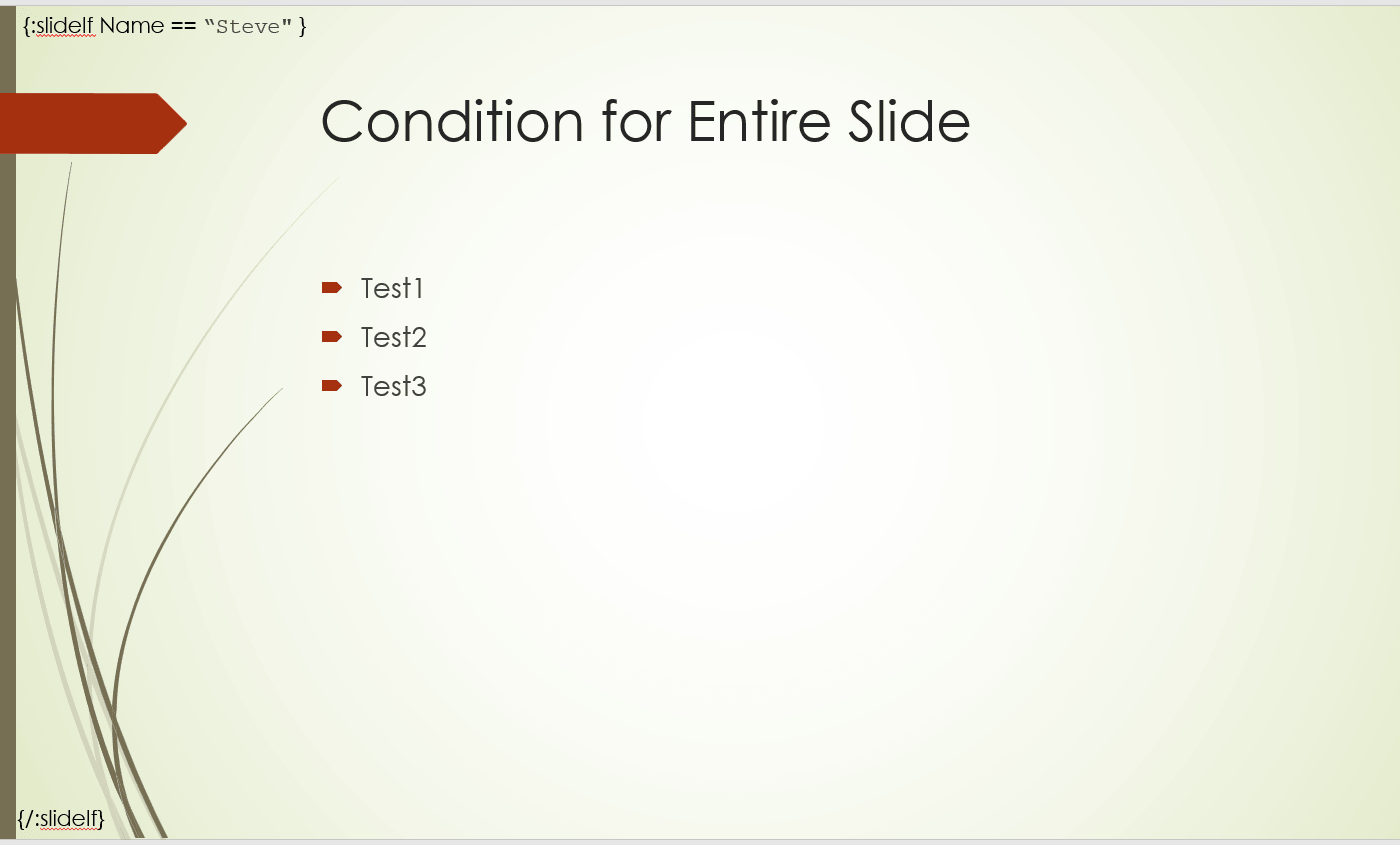
Show or hide entire slides
Use
slideIf
to conditionally include or exclude a complete slide during PPT generation.
If the condition evaluates to true, the slide is included in the output;
otherwise, the entire slide is skipped.
Syntax
	{:slideIf <condition>}
		... slide content ...
	{/:slideIf}
Example
	{:slideIf Name == "Steve"}
		Slide content shown only when `Name` is `Steve`
{/:slideIf}-
Place the
{:slideIf ...}notation on the slide itself. -
Everything inside the block belongs to that slide.
-
If the condition is false, the system omits the full slide from the generated presentation.
-
This is useful when different audiences need different slide sets without maintaining multiple templates.
Calculations
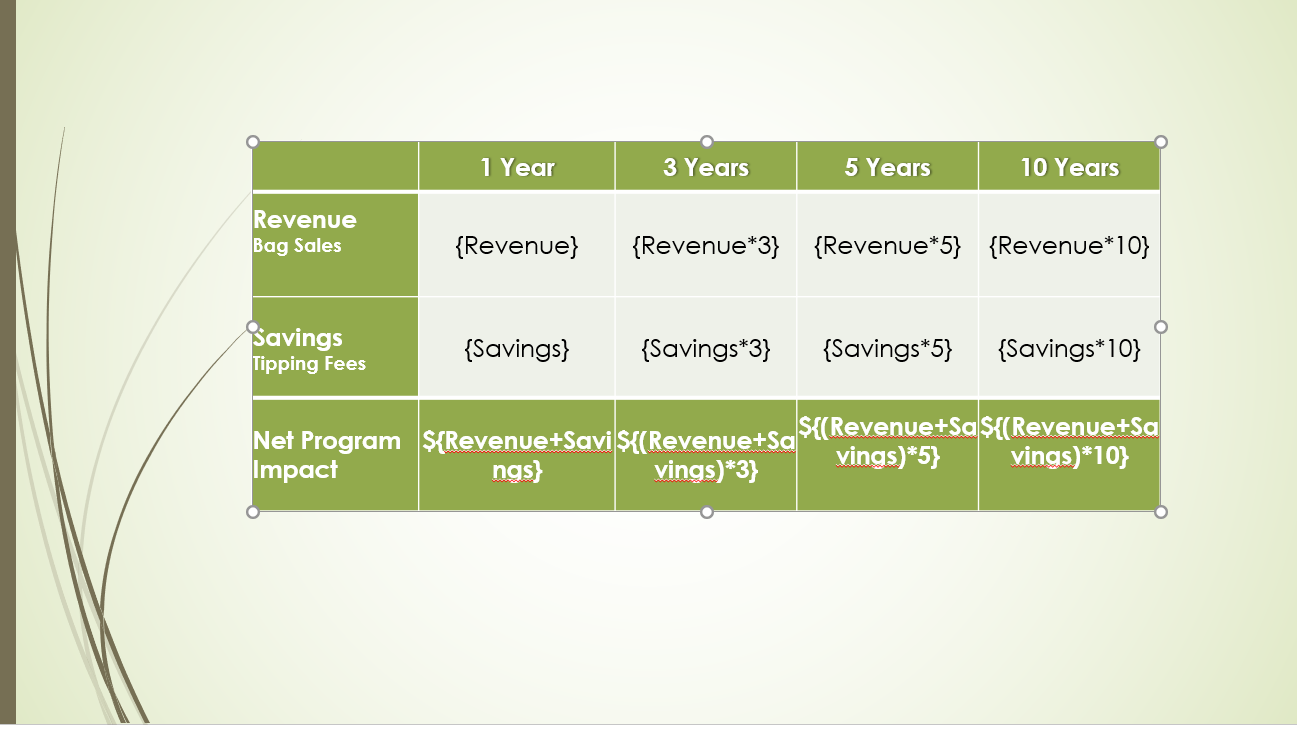
Your can perform calculations right inside the template. The system supports basic arithmetic operations.
Generate Multiple Slides
The {:slidesArray} tag generates a fresh slide for every entry in the nested array. Within the slide tag, you will find tags for images and tables.
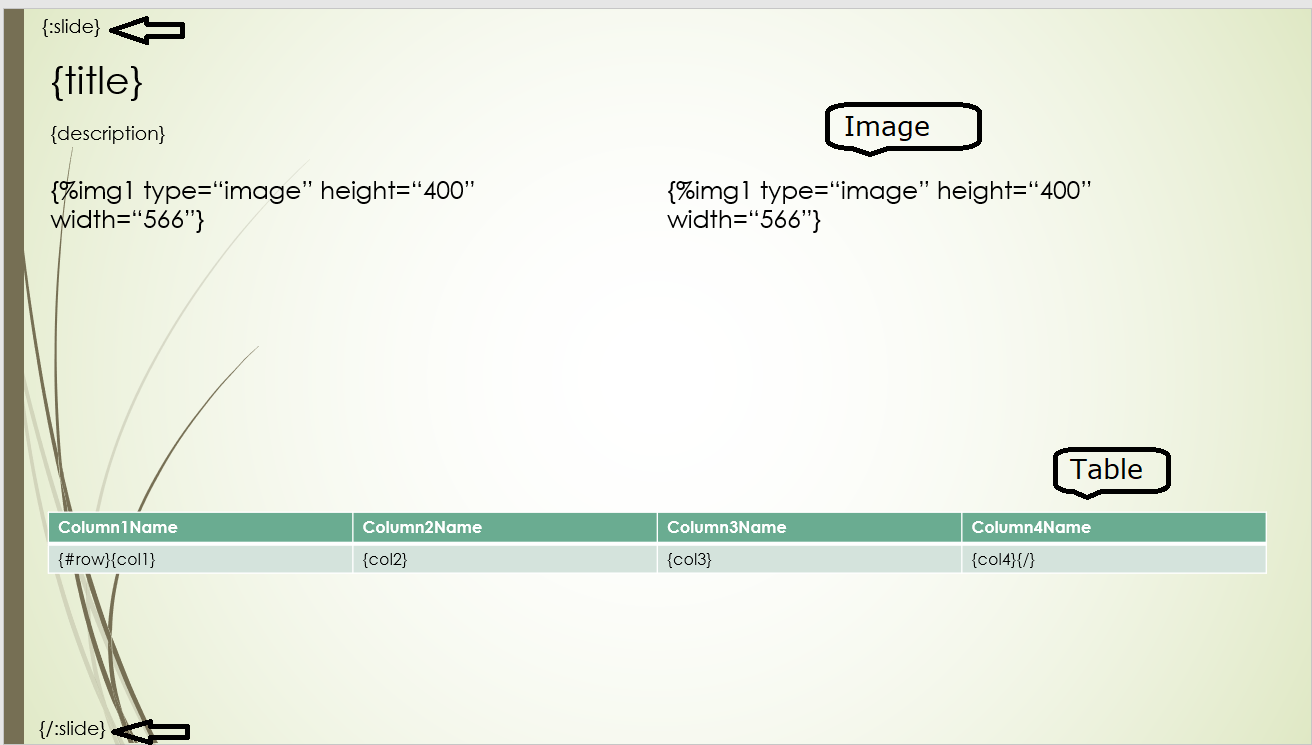
Following JSON creates 3 slides for the three JSON records.
    [{
  "name": "First Presentation",
  "description": "Description",
  "slide": [
    {
      "title": "RandomText1",
      "description": "Lorem ipsum dolor sit amet.",
      "img1": "https://picsum.photos/566/300",
      "img2": "https://picsum.photos/566/300",
      "row": [
        {
          "one": "Text1",
          "two": "Text2",
          "three": "Text3",
          "four": "Text4"
        },
        {
          "one": "Text5",
          "two": "Text6",
          "three": "Text7",
          "four": "Text8"
        },
        {
          "one": "Text9",
          "two": "Text10",
          "three": "Text11",
          "four": "Text12"
        },
        {
          "one": "Text13",
          "two": "Text14",
          "three": "Text15",
          "four": "Text16"
        }
      ]
    },
    {
      "title": "RandomText2",
      "description": "Consectetur adipiscing elit.",
      "img1": "https://picsum.photos/566/300",
      "img2": "https://picsum.photos/566/300",
      "row": [
        {
          "one": "Text17",
          "two": "Text18",
          "three": "Text19",
          "four": "Text20"
        },
        {
          "one": "Text21",
          "two": "Text22",
          "three": "Text23",
          "four": "Text24"
        },
        {
          "one": "Text25",
          "two": "Text26",
          "three": "Text27",
          "four": "Text28"
        },
        {
          "one": "Text29",
          "two": "Text30",
          "three": "Text31",
          "four": "Text32"
        }
      ]
    },
    {
      "title": "RandomText3",
      "description": "Sed do eiusmod tempor.",
      "img1": "https://picsum.photos/566/300",
      "img2": "https://picsum.photos/566/300",
      "row": [
        {
          "one": "Text33",
          "two": "Text34",
          "three": "Text35",
          "four": "Text36"
        },
        {
          "one": "Text37",
          "two": "Text38",
          "three": "Text39",
          "four": "Text40"
        },
        {
          "one": "Text41",
          "two": "Text42",
          "three": "Text43",
          "four": "Text44"
        },
        {
          "one": "Text45",
          "two": "Text46",
          "three": "Text47",
          "four": "Text48"
        }
      ]
    }
  ],
  "slide": [
    {
      "title": "RandomText1",
      "description": "Lorem ipsum dolor sit amet.",
      "img1": "https://picsum.photos/566/300",
      "img2": "https://picsum.photos/566/300",
      "row": [
        {
          "one": "Text1",
          "two": "Text2",
          "three": "Text3",
          "four": "Text4"
        },
        {
          "one": "Text5",
          "two": "Text6",
          "three": "Text7",
          "four": "Text8"
        },
        {
          "one": "Text9",
          "two": "Text10",
          "three": "Text11",
          "four": "Text12"
        },
        {
          "one": "Text13",
          "two": "Text14",
          "three": "Text15",
          "four": "Text16"
        }
      ]
    },
    {
      "title": "RandomText2",
      "description": "Consectetur adipiscing elit.",
      "img1": "https://picsum.photos/566/300",
      "img2": "https://picsum.photos/566/300",
      "row": [
        {
          "one": "Text17",
          "two": "Text18",
          "three": "Text19",
          "four": "Text20"
        },
        {
          "one": "Text21",
          "two": "Text22",
          "three": "Text23",
          "four": "Text24"
        },
        {
          "one": "Text25",
          "two": "Text26",
          "three": "Text27",
          "four": "Text28"
        },
        {
          "one": "Text29",
          "two": "Text30",
          "three": "Text31",
          "four": "Text32"
        }
      ]
    },
    {
      "title": "RandomText3",
      "description": "Sed do eiusmod tempor.",
      "img1": "https://picsum.photos/566/300",
      "img2": "https://picsum.photos/566/300",
      "row": [
        {
          "one": "Text33",
          "two": "Text34",
          "three": "Text35",
          "four": "Text36"
        },
        {
          "one": "Text37",
          "two": "Text38",
          "three": "Text39",
          "four": "Text40"
        },
        {
          "one": "Text41",
          "two": "Text42",
          "three": "Text43",
          "four": "Text44"
        },
        {
          "one": "Text45",
          "two": "Text46",
          "three": "Text47",
          "four": "Text48"
        }
      ]
    }
  ],
  "thank_you_text": "Thank You."
}]
The system also supports the special cases, where each array record creates more than one slide.